
Inhibiting Babel Evaluate Confirmation On The Mode Line

In Setting the Babel Evaluate Confirm Status, I wrote about Org-mode’s Babel asking for confirmation before executing a code block and why it’s sometimes convenient to turn that behavior off. In the post, I presented a simple Emacs Lisp function, babel-confirm to test the status of org-confirm-babel-evaluate and to optionally toggle its value. It’s often convenient to be able to turn off the confirmation question, especially when the code block gets called many times, such as when a table full of computable cells is evaluated.

Sometimes we have a file that we know is safe and that we often update and evaluate. One such example is my daily steps file, which has an R code block to generate the statistics max, min, mean, median, and standard deviation. Every day I enter the previous day’s steps and type 【Ctrl+c Ctrl+c】 to calculate the statistics. Each time I do this, Babel asks me to confirm that I really want to evaluate the code block. Notice that babel-confirm doesn’t help here because it takes more typing than just answering y to the question.

Yesterday, I saw this post on the Emacs reddit, which suggests another method: just put a mode line at the top of your file that turns org-confirm-babel-evaluate off. That way you get rid of the annoying question for that one file but keep the security of asking for confirmation for other files. To do this, just put

# -*- org-confirm-babel-evaluate: nil -*-

at the top of your file.

What could be simpler? It’s easy to forget the power of the mode line and that’s too bad because sometimes it’s just what you need.
Posted in General | Tagged , , | 1 Comment

Some More Emacs Dired Magic

In a comment to my post yesterday about A Nice Emacs Dired Command Sue Nymme notes that in addition to 【* t】 a plain 【t】 will also toggle the marks in a Dired buffer. That brings up another Dired trick that I learned from the Emacs Wiki.

You can display only the marked files by using the command 【t k】. This works by first toggling the marks so that the previously marked files are not marked and all the others are. Then the 【k】 kills (that is, hides) all the marked files. You can restore things with the 【g】 command or with the 【t g】 command if you want the files to still be marked. The 【t g】 command is useful if you have a lot of files in the directory and want to see which files are marked before you perform some operation, such as delete, on them.

Posted in General | Tagged , | 1 Comment

Password Advice From XKCD

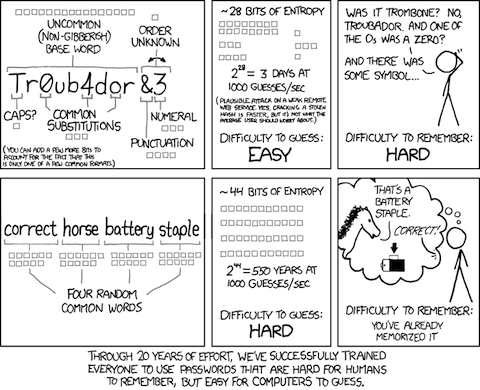
In view of today’s XKCD:

http://irreal.org/blog/wp-content/uploads/2011/08/wpid-password_strength.png

I thought it would be useful to again mention the post by Jeff over at the Agile Bits Blog. That post discusses making a password by choosing 5 or 6 random words for your passwords. That’s what Randall Munroe is talking about in the XKCD comic.

As I was writing this post, I popped over to Agile Bits to get the URL for the link to the Blog. There I found that Jeff had written a followup article also based on the comic. In it he deconstructs the comic and shows how Munroe arrived at his estimation of the entropy of the two systems. As usual, there is a lot more going on in the comic than you might think. This is a really great post and everyone who uses a password for anything nontrivial should read it. Really.

Posted in General | Tagged | 1 Comment

A Nice Emacs Dired Command

As I’ve mentioned many times, I write my blog posts in Emacs and publish them with org2blog. After I push the post to WordPress, I have a buffer and file with the HTML that I no longer need. I used to clean that up by opening a Dired buffer and using the 【% m】 command to ask that files be marked by a regular expression. When prompted for the regexp, I would specify \.html$. Then a 【D】 command would delete any html files and ask if I wanted the buffers deleted too. That’s a quick and easy way to get rid of leftover files and buffers.

Somewhere along the line, I discovered an easier way to mark those files in Dired. Instead of 【% m】 use the command 【* .】 to ask that buffers be marked by their extension and then just specify html when prompted.

Today I read that this command is not well known so I thought I’d share. If you think about it, we often want to delete files this way. Think of how many times you’ve typed something like

rm *.o

Here are some other useful commands in the marking family:

Key Sequence Command
* / Mark Directories
* @ Mark Symlinks
* * Mark Executables
* t Invert Marking
* s Mark Files in Current Subdir
* % Mark Files Matching Regexp
* ( Mark Files For Which an Elisp Expression Returns t (Dired+)

Update: Several commenters have reported that the 【* .】 command is available only when dired+.el is loaded. I’ve been using Dired+ for a long time and can recommend it whether or not you need this particular command.

Posted in General | Tagged , | 8 Comments

Using Reeder

It’s been almost two months since I started using Reeder and I was thinking that I should write a review. Fortunately, Angel over at Apple Casts has already taken care of that for me. He does a very nice job so I encourage you to head on over there and take a look if you’re in the market for an (OS X/iOS) RSS reader.

As I wrote when I first adopted Reeder, I like it because it works across the entire Apple platform and keeps my reading in sync no matter which device I’m using at the moment. That last point deserves some emphasis: iMac, MacBook Pro, iPad, or iPhone1 it makes no difference. The “same” application runs on them all and because Reeder is a Google Reader client what I’ve read on one device is reflected on the others.

I put same in quotes in the last paragraph because, of course, it’s not literally the same application—it’s a family of ports of a single application. Each of these ports offers the same functionality and behave in essentially the same way but there are some UI differences due to different hardware. On the Macs, for example, you can control Reeder entirely through the keyboard if you like; with the iPad, the keyboard is never used except for entering subscriptions, emailing articles, and things like that. The hardware differences that matter go beyond the type of computer. For example, my MacBook has an “old” trackpad that recognizes only the two-finger scrolling gesture whereas my iMac has a Magic Trackpad that recognizes the full set of Apple gestures. The same full set of gestures are available on the trackpads of the newer MacBooks, of course. These differences influence how you use Reeder.

Here’s how I invoke the common Reeder functions on the various devices:

Function iMac (Magic Trackpad) MacBook (old trackpad) iPad
Next/Previous Feed click on feed n/p touch feed
Next/Prev Article 4-finger swipe down/up j/k touch down/up arrow
View Article 4-finger swipe right v touch article
View Article in Readability pinch open g pinch open
View Article in Browser Menu b Menu

As you can see, I’m inclined to control Reeder on the iMac entirely with the Magic Trackpad although I could use the same keyboard shortcuts that I use on the MacBook.

There are other Reeder function that I don’t use very often so I haven’t listed them. You may find you do want to use them or you may find that you want to invoke the functions in a different way from me. The nice thing about Reeder is that you can pretty much use whatever method you like except on the iPad where everything is touch based.

Update: touch up/down arrow → touch down/up arrow for iPad

Footnotes:

1 There is an iPhone version of Reeder but I don’t use it because I don’t like reading articles on the small screen.

Posted in General | Tagged | 1 Comment

Solarized On Emacs

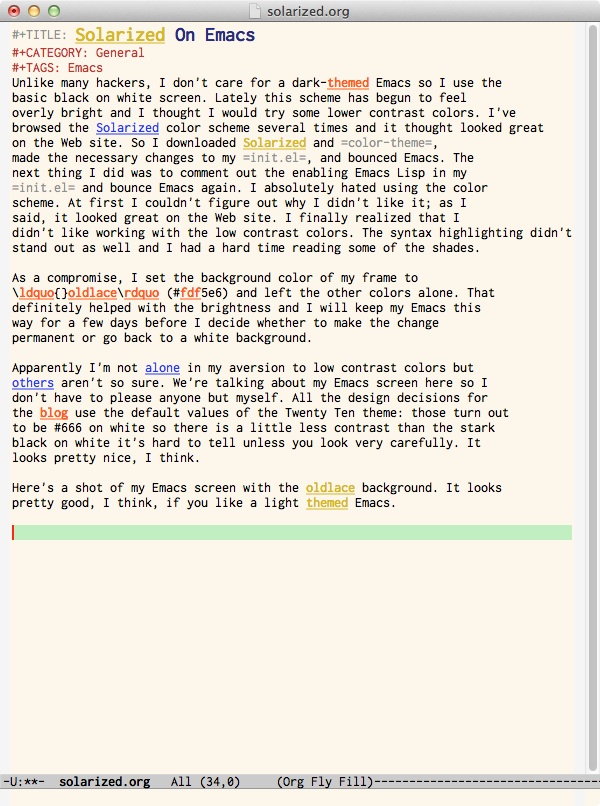
Unlike many hackers, I don’t care for a dark-themed Emacs so I use the basic black on white screen. Lately this scheme has begun to feel overly bright and I thought I would try some lower contrast colors. I’ve browsed the Solarized color scheme several times and thought it looked great on the Web site. So I downloaded Solarized and color-theme, made the necessary changes to my init.el, and bounced Emacs. The next thing I did was to comment out the enabling Emacs Lisp in my init.el and bounce Emacs again. I absolutely hated using the color scheme. At first I couldn’t figure out why I didn’t like it; as I said, it looked great on the Web site. I finally realized that I didn’t like working with the low contrast colors. The syntax highlighting didn’t stand out as well and I had a hard time reading some of the shades.

As a compromise, I set the background color of my frame to “oldlace” (#fdf5e6) and left the other colors alone. That definitely helped with the brightness and I will keep my Emacs this way for a few days before I decide whether to make the change permanent or go back to a white background.

Apparently I’m not alone in my aversion to low contrast colors but others aren’t so sure. We’re talking about my Emacs screen so I don’t have to please anyone but myself. All the design decisions for the blog use the default values of the Twenty Ten theme. Those turn out to be #666 on white so while there’s a little less contrast than the stark black on white it’s hard to tell unless you look carefully. I think it looks nice and is easy to read.

Here’s a shot of my Emacs screen with the oldlace background. It looks pretty good, I think, if you like a light themed Emacs.

http://irreal.org/blog/wp-content/uploads/2011/08/wpid-oldlace.jpg

Posted in General | Tagged | 2 Comments

Let Emacs Make Your Scripts Executable

Because I like to automate things, I write a lot of shell scripts. Sometimes it’s just some simple shell code, other times the script loads and executes a Scheme program. Almost every time I do this, I forget to set the execute bits on the script so, of course, it fails the first time I try to run it. Here, via Hacker News, is a simple trick to automate making your scripts executable. Add the following to your .emacs or init.el file.

(add-hook 'after-save-hook 'executable-make-buffer-file-executable-if-script-p)

This will check when you save a file to see if it looks like a script and if it does, make it executable. The executable-make-buffer-file-executable-if-script-p function does the intelligent thing when the file is already executable so it won’t mess up any file mode bits that you’ve already set.

Posted in Programming | Tagged | Leave a comment

SICP Under Attack?

Vedant Kumar has a provocative post entitled SICP is Under Attack in which he laments the abandonment of SICP by several universities and especially by Berkeley, where he is a EE/CS student. Berkeley, it turns out, is replacing SICP with Dive Into Python. I’m having a hard time getting my mind around this.

I’ve read Dive Into Python and it’s a very nice book—excellent for learning Python—but it’s not really a book about Computer Science or learning to think like a computer scientist. If you’ve watched the famous SICP lectures given by Abelson and Sussman at HP you may recall that in the first lecture Abelson specifically says that Computer Science is no more about computers than geometry is about surveying. That little nugget is from 1986 and has aged well, I think.

How then, does it make sense to replace a book about Computer Science—arguably the best book about Computer Science—with a book that teaches a particular language? Yes, SICP uses Scheme but the point was that Scheme was so easy to pick up that they spent virtually no time on the language; they concentrated on Computer Science concepts such as recursion, complexity theory, and fixed points.

To be fair, Kumar has an update in which he says that Berkeley has assured him that all that’s really happening is that they’re moving from Scheme to Python and that the content from SICP will be preserved. Even if that’s possible, it makes the decision worse in my opinion. SICP is the exemplar of its approach. Why would you replace it with something else? Again, Dive Into Python is a fine book for learning python but in no way does it cover the same material or serve the same ends as SICP.

MIT, of course, famously abandoned SICP too but they, at least, had a reasonable, if not ultimately convincing, rationale for doing so. Sussman explained that software engineering today is all about gluing together huge libraries that hardly anyone understands and that the SICP approach of understanding everything “all the way down” isn’t used anymore or at least is less relevant. That may be true but it’s no reason that students should not learn the material that forms the foundation of their craft.

In the last couple of days. I’ve seen several posts lamenting the fact that younger engineers don’t really understand the fundamentals or what’s going on “under the covers.” Of course some of this could be the normal “kids today!” that fogies have been muttering since Plato but if our very best engineering schools, like Berkeley and MIT, are teaching their students to glue libraries together at the expense of learning and understanding the foundations of CS these observations should come as no surprise.

Posted in General | Tagged | Leave a comment

Desktop Gmail Gets A Preview Pane

Back in July I wrote that I preferred reading Gmail on my iPad even when I was home and had my iMac available. That’s because the iPad Gmail has a preview pane. If you haven’t used it, it doesn’t sound like much but it really improves the Gmail work flow. On the desktop I scan the list of emails and delete any that I know I’m not interested in. Then I go to the first unread email, read it, and click on the next button to get the next message. That’s OK but if I want to delete a message or mark it as spam I get taken back to the list of emails and have to click on the next email to read. If I want to keep a message in my inbox, I mark it with a star. When I’ve read all the messages, I tell Gmail to check all the unstarred messages and then click on the archive button to save them.

With the iPad, there are three panes: the menu pain listing mailboxes, the message pane listing the messages, and the preview pane that has the selected message displayed (on the iPad, the menu pane is usually hidden but it can be swapped with the message pane). With this setup, I can just choose archive, delete, or mark as spam and the next message displays. It’s a much easier and more natural flow and when I’m done, I’m done—I don’t have to mark messages for archiving and all that.

Now, at last, desktop Gmail has a preview pane. It’s still a “Gmail Labs” project so you have to enable it—see the linked article for directions—but once you do that it works fine. Jason Kincaid, who wrote the TechCrunch article above, has a few problems with it but I’m happy. Very happy. The first time I used it I expanded my browser to full screen, which on my 27-inch iMac gives everything plenty of room, but I’m not sure I really need to do that; After all, it works fine on the iPad’s 9.7 inch screen. I’ll experiment with it a bit more before I settle on a definite routine. For now, I’m just happy to have this functionality on my desktop as well as my iPad.

Posted in General | Leave a comment

The Emacs Info Apropos Command

I’m a longtime Unix programmer. I started before Linux or FreeBSD and if you count Xenix, I programmed on versions as early as System III. As a result, I came to view the man page as the sine qua non of Unix documentation. Later, the GNU project introduced the texinfo format but by then I was well into curmudgeonhood and I never did warm up to info. Part of the problem was info itself. As far as I’m concerned, it’s unusable. I know, I know, lots of people love info. I’m not one of those people. When I absolutely had to read an info page I used a little Tcl/Tk utility called tkinfo. I still used it grudgingly but at least it was usable.

Back in those days, I was a vi user, so info or tkinfo were pretty much the only choices. When I moved to Emacs, I was delighted to discover that its info interface was much better so, while I still preferred man pages, I got much more comfortable with info documentation. One problem I still had even with the Emacs info reader was that it’s hard to search for specific text if you’re not already on the proper node. Now Mickey over at Mastering Emacs has written an excellent post on Full Text Searching In Info Mode With Apropos that showed me how to solve that problem.

The info-apropos command (【Meta+ xinfo-apropos) will do a text search of all the info documentation (not just Emacs documentation) on your system. It produces an apropos-like buffer containing each match and an indication of what node it’s in. You can select one of the matches in the usual info mode way and go directly to the corresponding info node.

Mickey’s post covers other apropos-type commands so you should definitely head over there and absorb some of his wisdom.

Posted in General | Tagged | Leave a comment